How to Convert JPG to PDF Quickly (Free, No Signup)
· Abhishek Sahu · 5 min read
Need to turn a photo into a PDF? It takes less than a minute. You pick your photos, put them in order, and download one PDF. You don’t need an app or an account.
A lot of websites only take PDF files. Job forms, exam forms and government sites are good examples. So if you have a photo of your certificate, ID card or marksheet, you’ll often need to change it to PDF first.
In this guide, I’ll show you the easiest way to do it on your computer and your phone.
How to convert JPG to PDF in 3 easy steps
We’ll use a free JPG to PDF tool. The best part is that your photos stay on your device. Nothing gets uploaded anywhere.
Step 1: Pick your photos
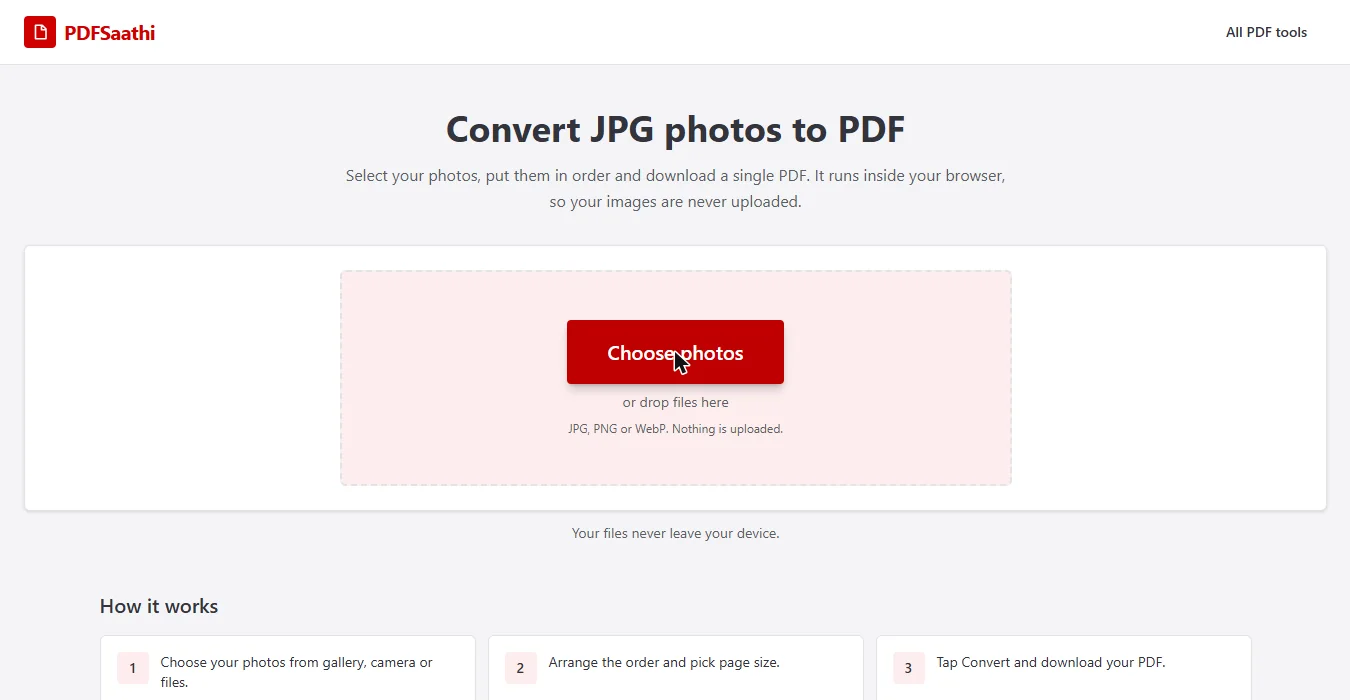
Open the JPG to PDF tool and click Choose photos. You can also drag your photos into the box. You can pick one photo or many at once.
Step 2: Put them in order and choose your settings
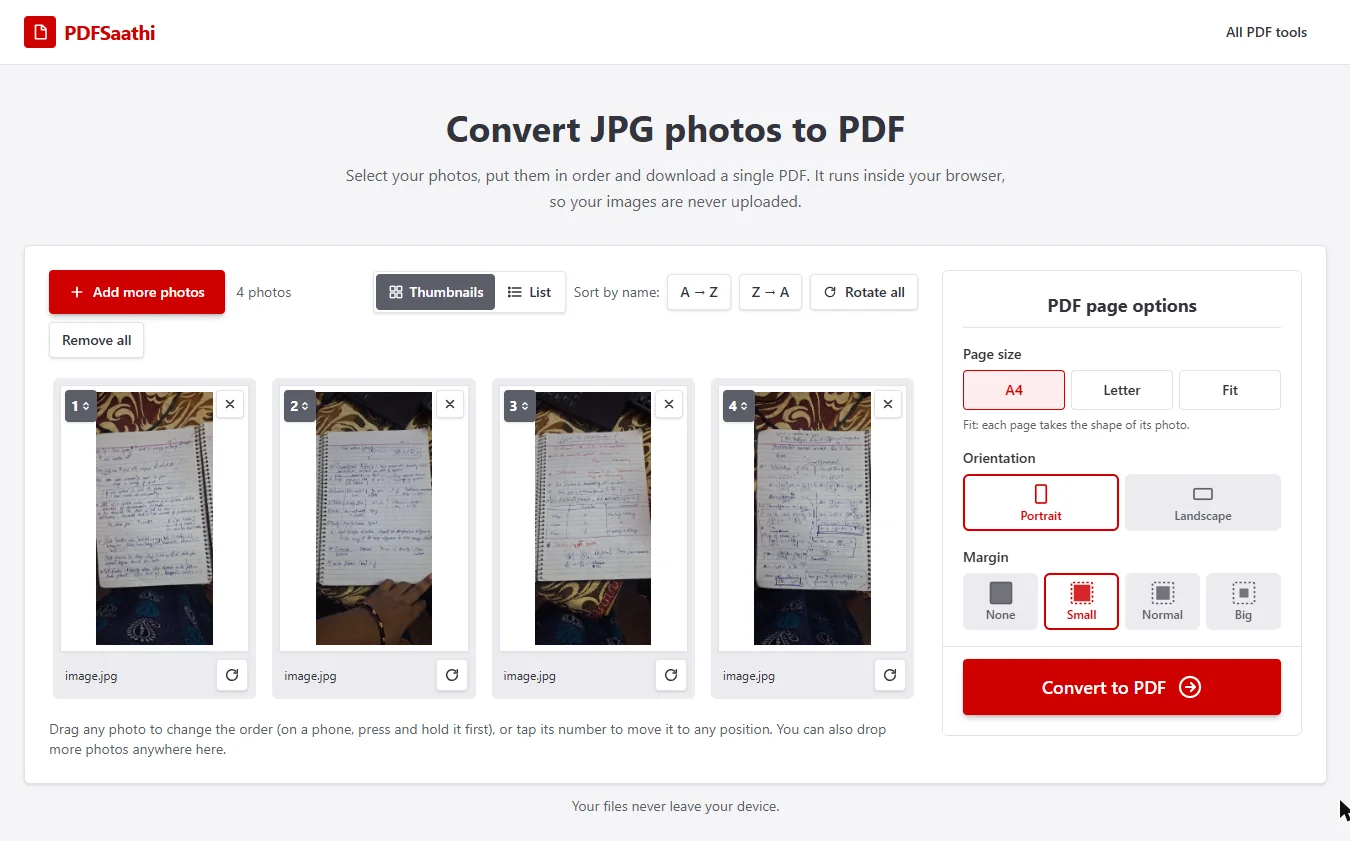
Your photos now show up with numbers on them. The number tells you which page it will be. Want to change the order? Just drag a photo to a new spot.
Is a photo sideways? Click the small rotate button under it. Forgot a photo? Click Add more photos.
On the right side, you’ll see a few simple settings:
- Page size: Pick A4 for most documents. Pick Fit if you want each page to match the photo’s shape.
- Orientation: Portrait means standing up. Landscape means lying sideways.
- Margin: This is the white space around your photo. Small works well for most people.
Step 3: Convert and download
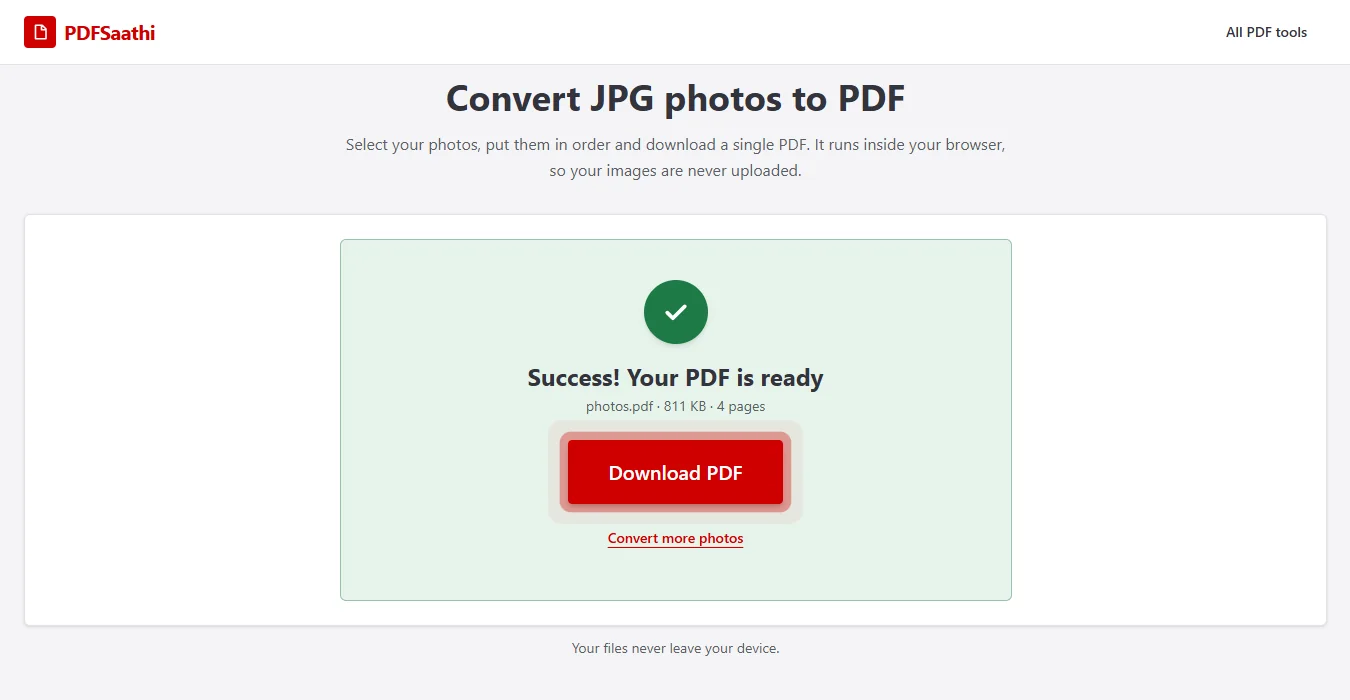
Click Convert to PDF and wait a few seconds. When you see “Your PDF is ready”, click Download PDF. That’s it, your PDF is saved.
How to do it on your phone
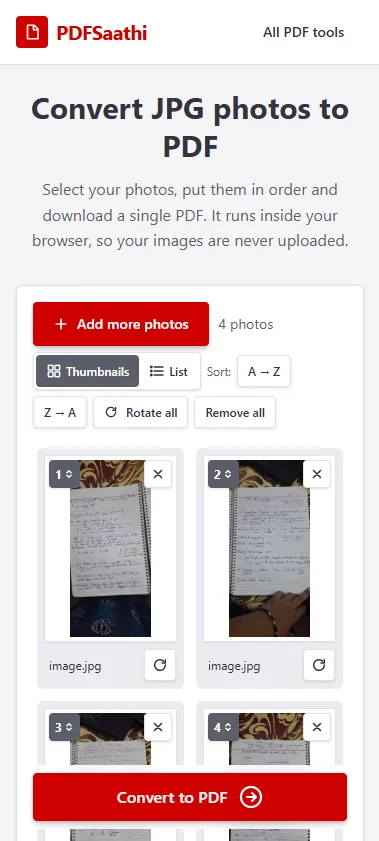
The steps are the same on a phone. Open the tool in Chrome or Safari and tap Choose photos. Then pick photos from your gallery, or take a new one with your camera.
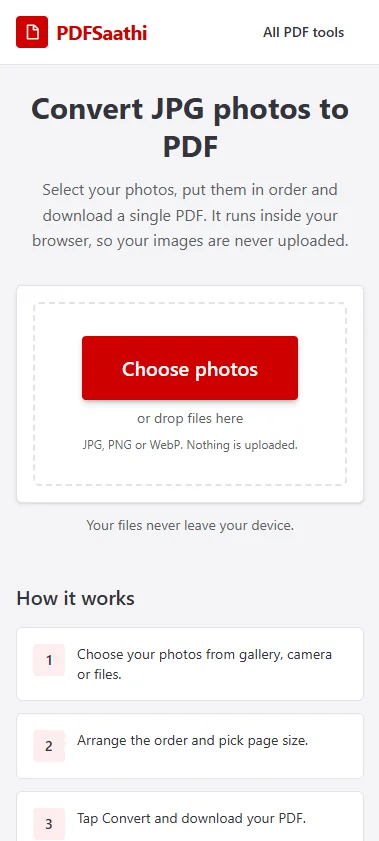
To change the order, press and hold a photo, then drag it. You can also tap the number on a photo to move it.
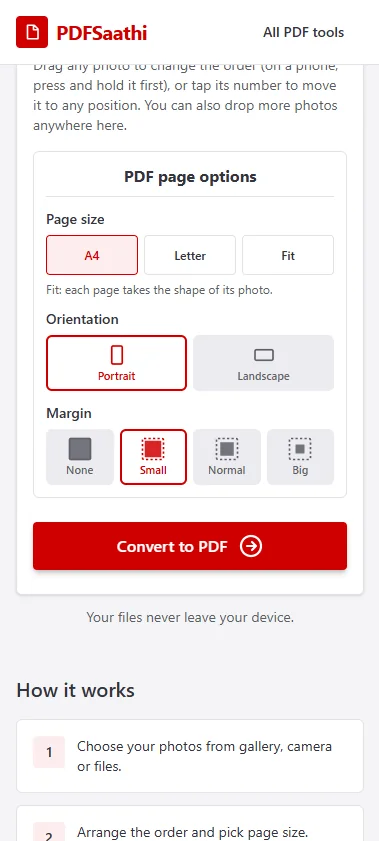
Scroll down a little. Choose your page size and margin, then tap Convert to PDF.
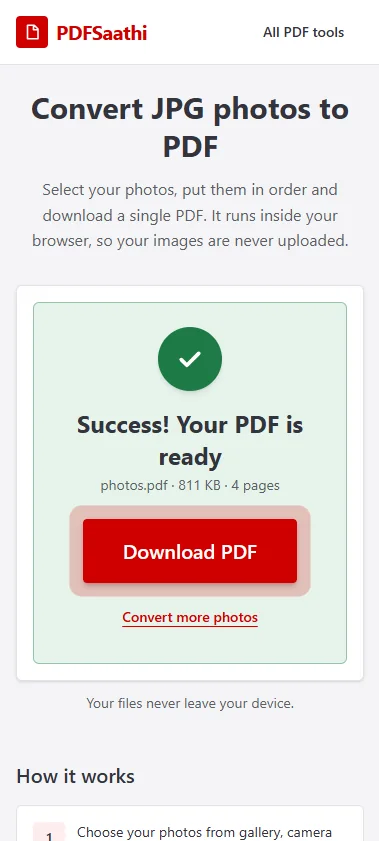
Now tap Download PDF. The file will be saved on your phone.
Tips to get a clear PDF
- Take the photo in good light. Daylight works best. Keep the paper flat so the words are easy to read.
- Cut off the extra parts. Use your phone’s edit button to crop out the table, floor or your fingers.
- Pick A4 for documents. Certificates, ID cards and forms look right and print well on A4.
- Check the order. For an ID card, put the front side first and the back side second.
- Add all photos together. This way you get one PDF with many pages, not many small files.
- Watch the file size. Some forms only take small files, like 200 KB or 1 MB. If your PDF is too big, compress it after you make it.
Other ways to do it (without a website)
Your computer or phone can also make a PDF on its own. It just takes a few more clicks.
On Windows
- Select your photos, right-click and choose Print.
- In the printer list, pick Microsoft Print to PDF.
- Click Print, give the file a name and save it.
On Mac
- Open your photos in Preview.
- Go to File, then Print.
- Click PDF and choose Save as PDF.
On iPhone
- Open the photo and tap the Share button.
- Tap Print, then spread two fingers on the preview to zoom in.
- Tap Share again and choose Save to Files.
On Android
- Open the photo, tap the three dots and choose Print.
- Pick Save as PDF as the printer.
- Tap the PDF button and save.
These ways work fine for one photo. But if you have many photos, the online tool is quicker and lets you change the order easily.
Common questions
Can I change JPG to PDF on my phone? Yes. Open the JPG to PDF tool in your phone’s browser, pick your photos and tap Convert. You don’t need to install any app.
Can I put many photos in one PDF? Yes. Pick all your photos at once. Each photo becomes one page in the same PDF.
Are my photos safe? Yes. Your photos never leave your phone or computer. The tool does all the work inside your browser.
What kind of images can I use? JPG, PNG and WebP. If you have other types of images, try the Image to PDF tool.
My PDF is too big for the form. What do I do? Crop out the extra parts of the photo before you convert. If it’s still too big, compress the PDF.
Do I have to pay or sign up? No. It’s free, and you don’t need an account.
Wrapping up
That’s all there is to it. Pick your photos, set the order, and download your PDF. Next time a form asks for a PDF, you can get it done in a minute.
Try it now: Convert JPG to PDF for free. No sign-up needed.