How to Convert Text to PDF (Free, No Signup)
· Abhishek Sahu · 5 min read
Want to turn your notes, a letter or a simple list into a neat PDF? You can do it in about a minute. Just type or paste your text, make it look nice, and download the PDF. No app, no sign-up.
A PDF looks the same on every phone and computer. That’s why it’s great for sharing letters, applications, notes and to-do lists. It also prints cleanly.
In this guide, I’ll show you how to do it step by step. I’ll also show you how to make headings, bold text and lists, and how to change the font and size.
How to convert text to PDF in 4 easy steps
We’ll use a free Text to PDF tool. Your text stays on your device. Nothing gets uploaded anywhere.
Step 1: Open the tool
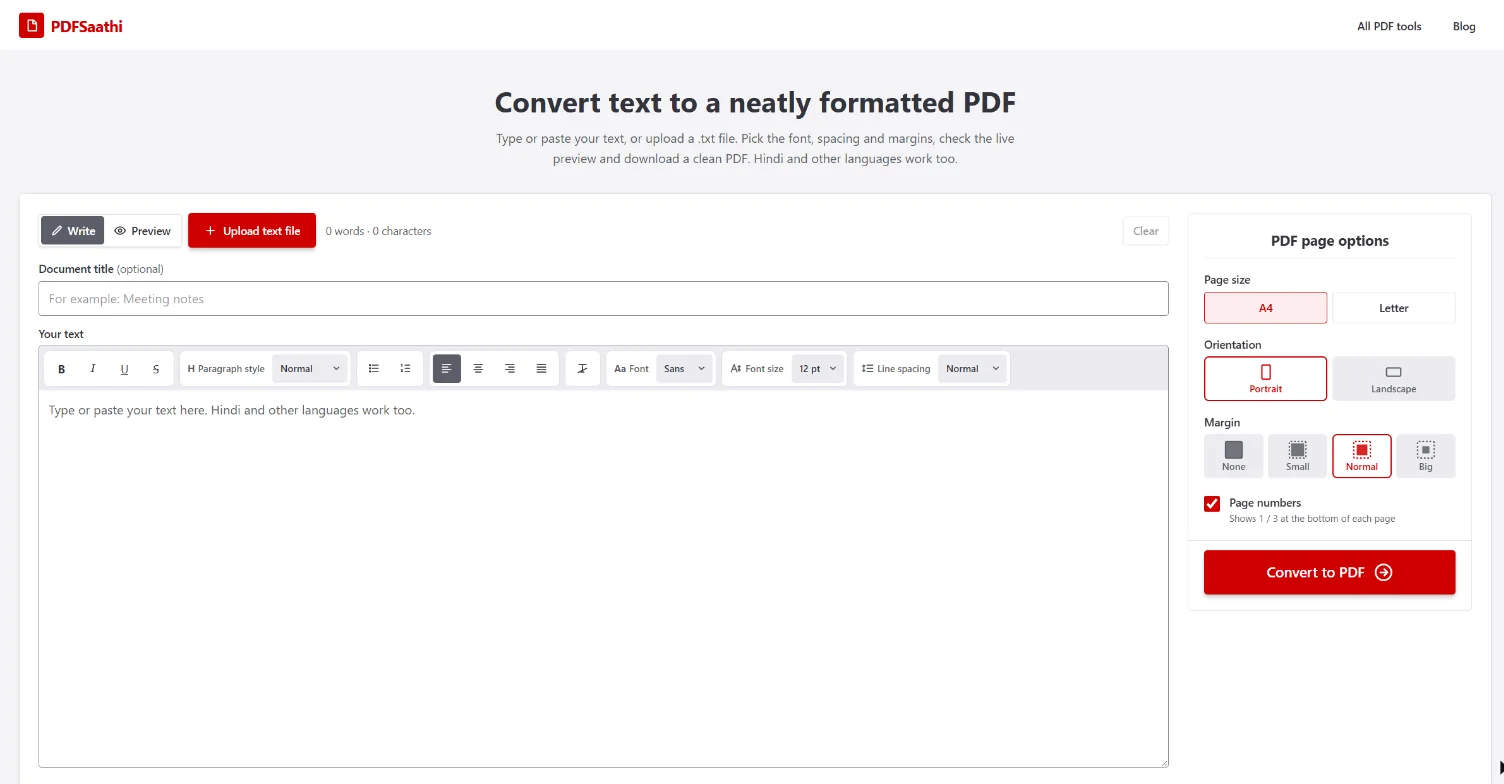
Open the Text to PDF tool. You’ll see a big box where you can write, and some page settings on the right side.
Step 2: Type your text and make it look nice
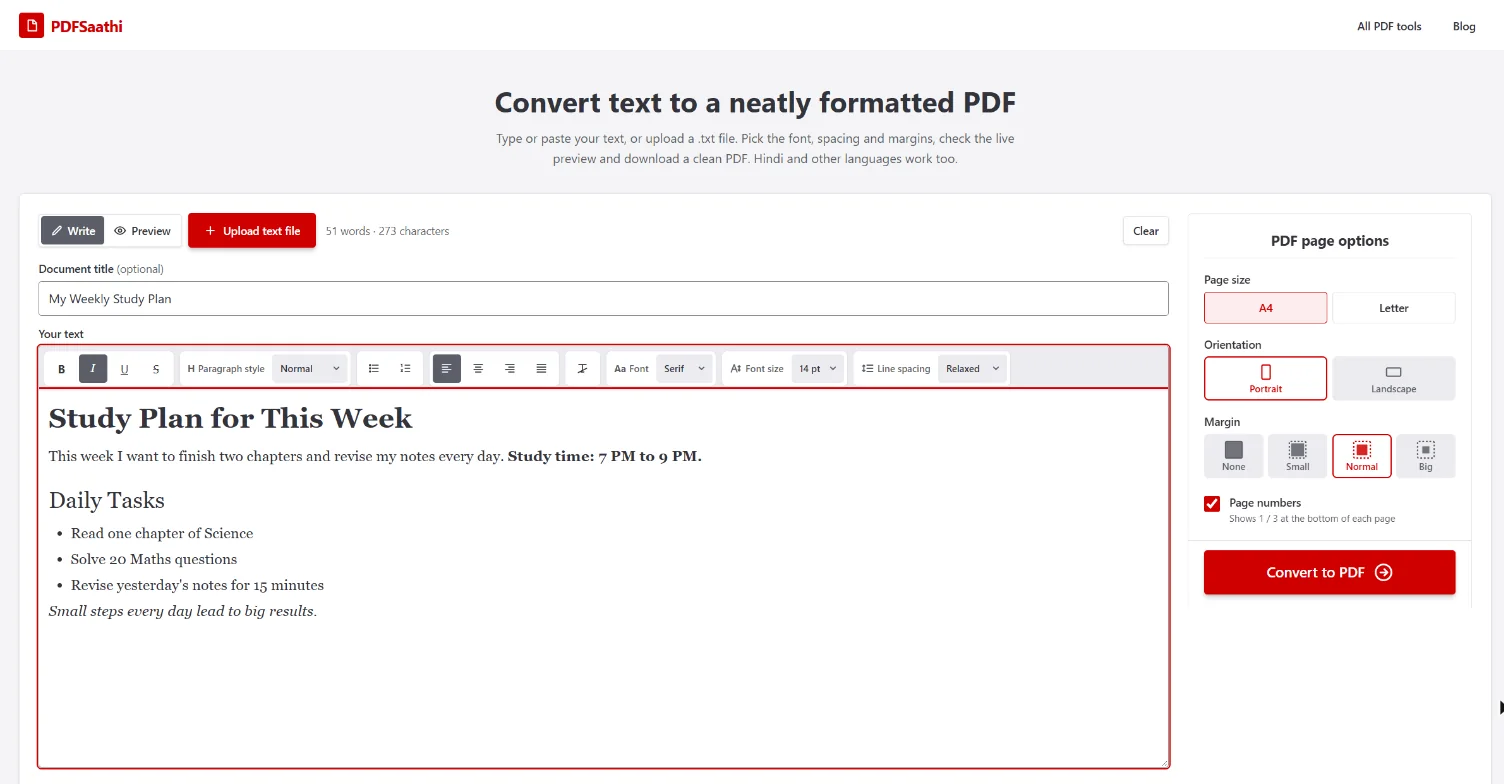
First, add a name for your file in Document title. This is optional, but it shows at the top of your PDF. I wrote “My Weekly Study Plan”.
Now type or paste your text in the big box. You can also click Upload text file if your text is saved in a .txt file.
Here’s what I did to make my sample text look good:
- Made the first line a big heading with Paragraph style > Heading 1
- Made “Daily Tasks” a smaller heading with Heading 2
- Made the study time bold with the B button
- Turned my tasks into a list with the bullet list button
- Made the last line italic with the I button
- Changed the Font to Serif, Font size to 14 pt, and Line spacing to Relaxed
Here’s a closer look at the formatting toolbar. Each button does one simple job:

| Button | What it does |
|---|---|
| B, I, U, S | Bold, italic, underline and strike-through |
| Paragraph style | Normal text, Heading 1, 2, 3 or Quote |
| List buttons | Bullet list or numbered list |
| Alignment | Left, center, right or justified |
| Font | Sans, Serif or Mono |
| Font size | From 9 pt to 24 pt |
| Line spacing | Compact, Normal, Relaxed or Double |
On the right side, you can also choose the page size (A4 or Letter), orientation, margin, and whether you want page numbers.
Step 3: Check the preview
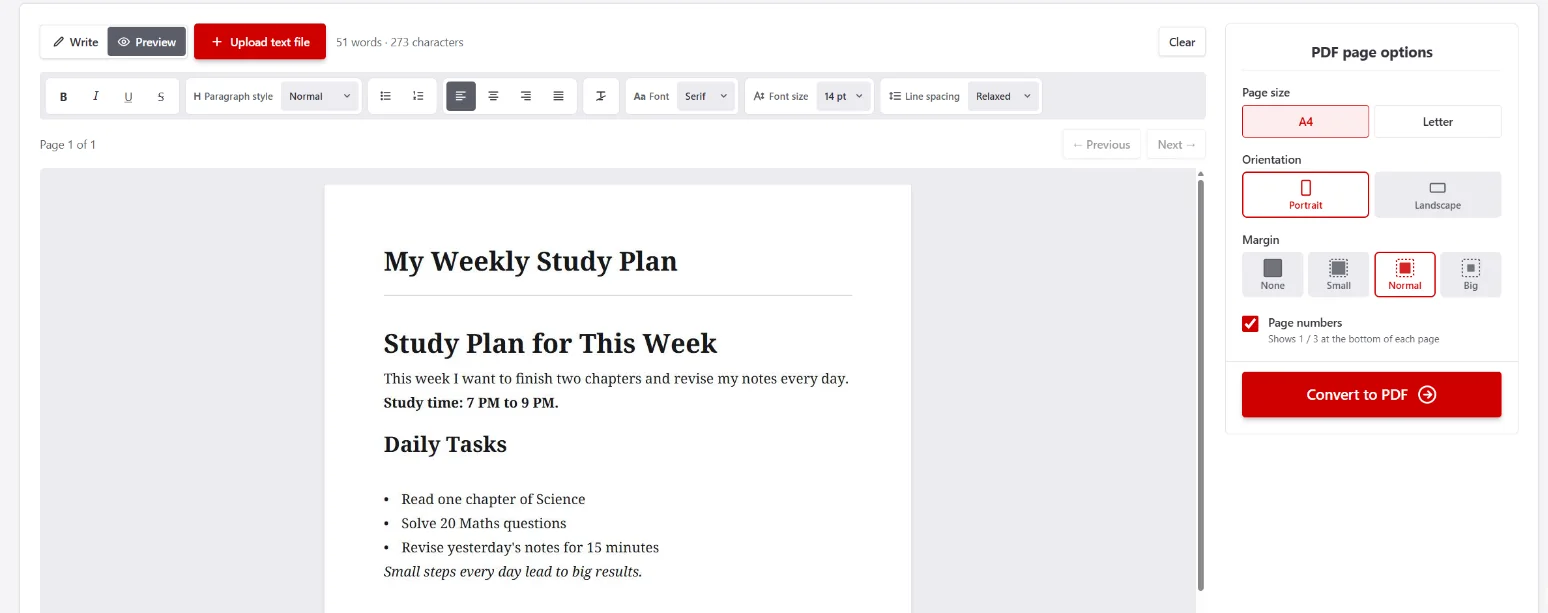
Click the Preview tab at the top. You’ll see exactly how your PDF will look, page by page. If something looks off, go back to Write and fix it.
Step 4: Convert and download
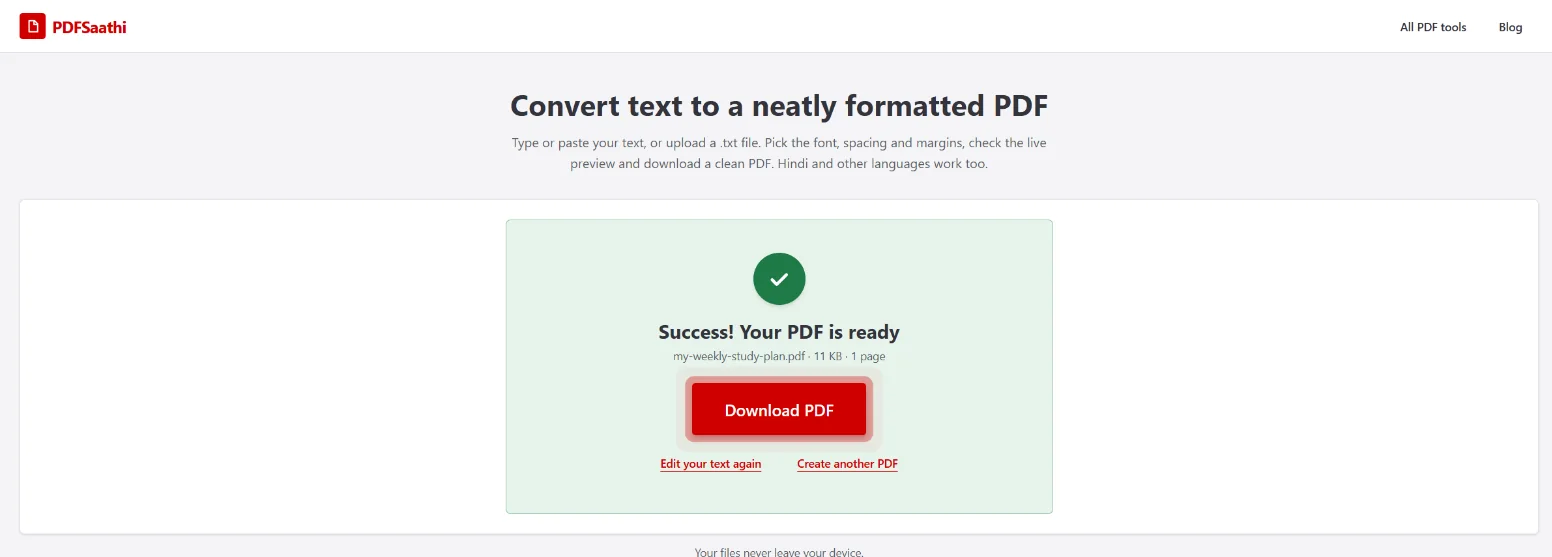
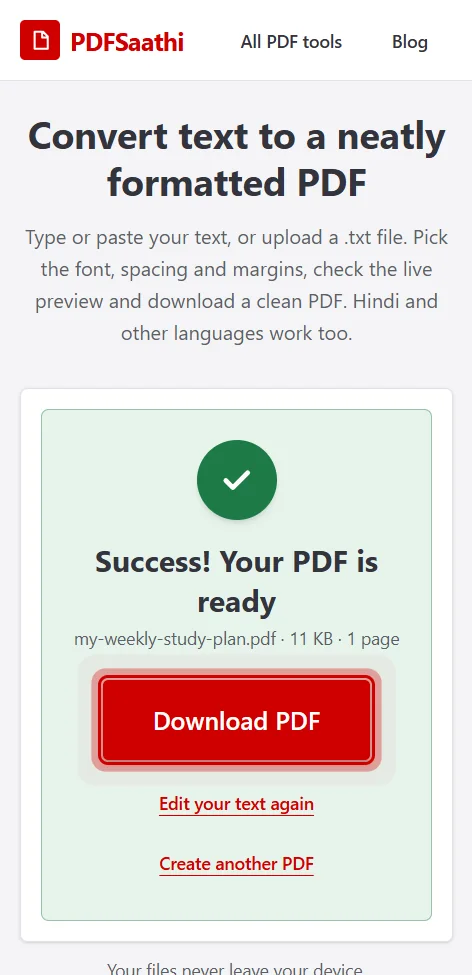
Click Convert to PDF. In a second you’ll see “Your PDF is ready”. Click Download PDF and you’re done. Want to change something? Click Edit your text again.
How to do it on your phone
The steps are the same on a phone. You don’t need to install any app. Just open the Text to PDF tool in Chrome or Safari.
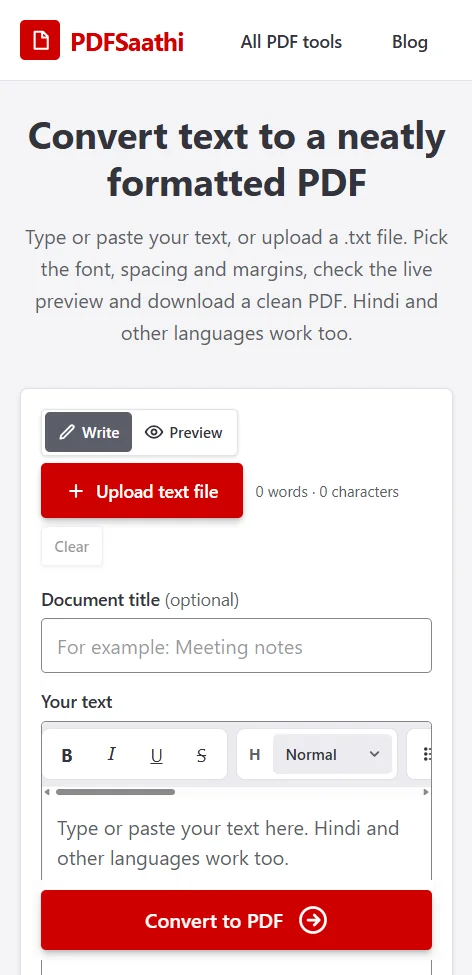
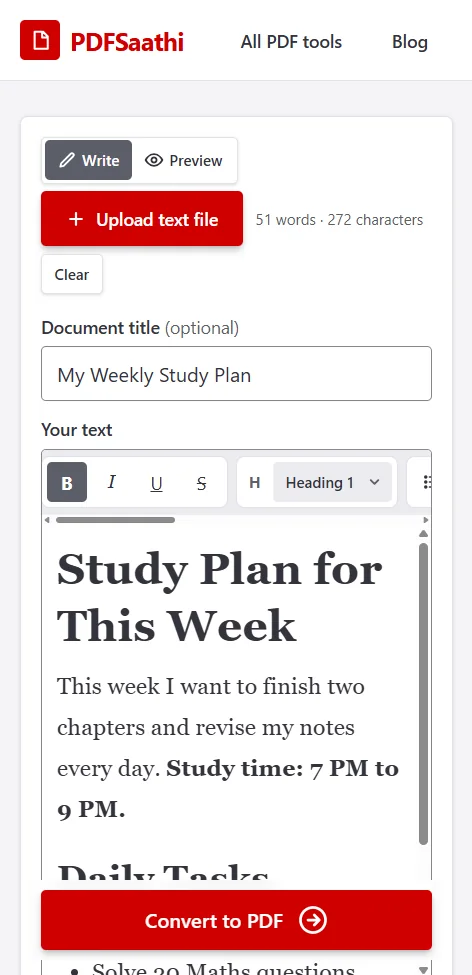
Type a title, then type or paste your text. The formatting buttons sit in one row above the text box. Swipe that row left to see more buttons like lists, font and font size.
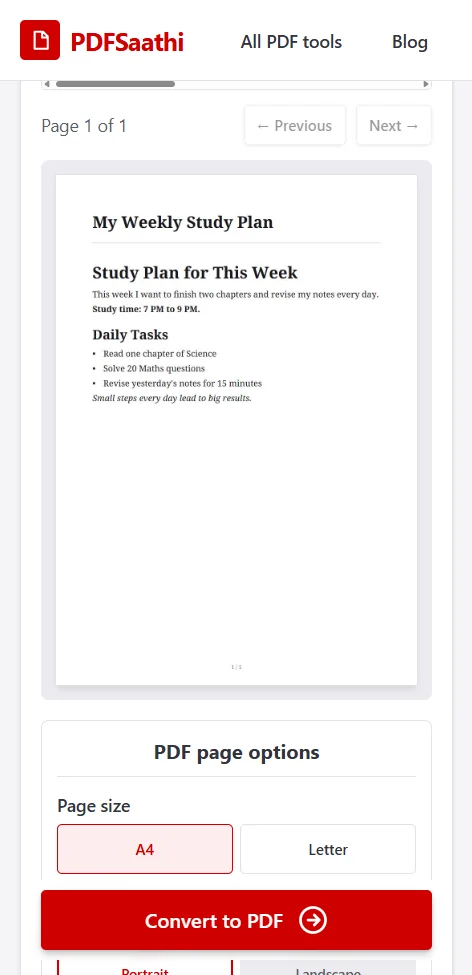
Tap Preview to see how your PDF will look.
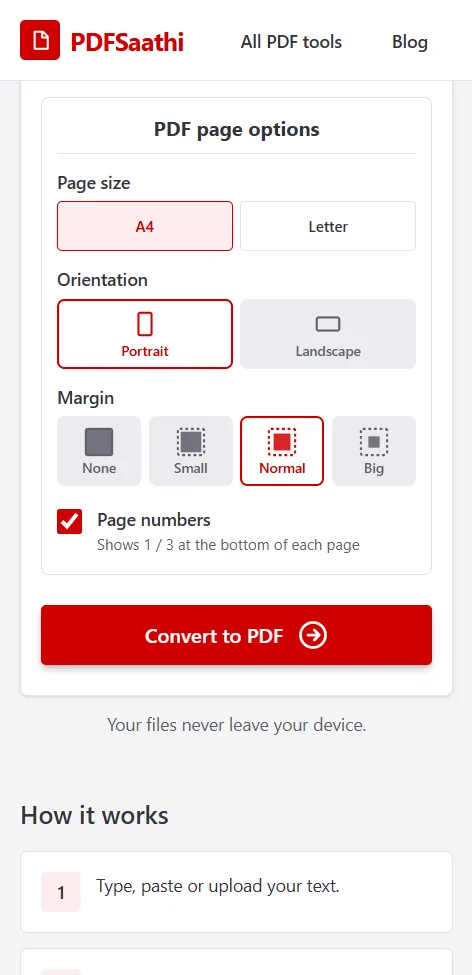
Scroll down to pick your page size, orientation and margin. Then tap Convert to PDF.
Now tap Download PDF. The file will be saved on your phone.
Tips for a PDF that looks good
- Use 12 pt text for letters and notes. With Normal line spacing and Normal margins, it’s easy to read.
- Add a title. It shows at the top of the PDF and helps people know what the file is about.
- Use headings. Break long text into small parts with Heading 1 and Heading 2.
- Use Justified alignment for long paragraphs. It makes both edges of the text line up neatly.
- Always check the Preview. It shows the real pages before you download.
- Skip emoji. Emoji and a few rare symbols show up as a question mark in the PDF.
Common questions
Can I write in Hindi? Yes. You can type Hindi or paste it from your phone. You can even mix Hindi and English in the same line.
Can I turn a .txt file into a PDF? Yes. Click Upload text file and pick your .txt file. The text shows up in the box, so you can fix it before you convert.
Can I see the PDF before I download it? Yes. Open the Preview tab. It updates every time you change a setting.
Is my text safe? Yes. The PDF is made inside your browser. Your text never leaves your device.
Why did some characters turn into question marks? Emoji and some rare symbols aren’t in the PDF fonts. English and Hindi letters work fine.
Do I have to pay or sign up? No. It’s free, and you don’t need an account.
Wrapping up
That’s it. Type your text, make it look nice, check the preview, and download your PDF. It’s a quick way to make a clean letter, notes or a to-do list you can share or print.
Try it now: Convert text to PDF for free. No sign-up needed.